
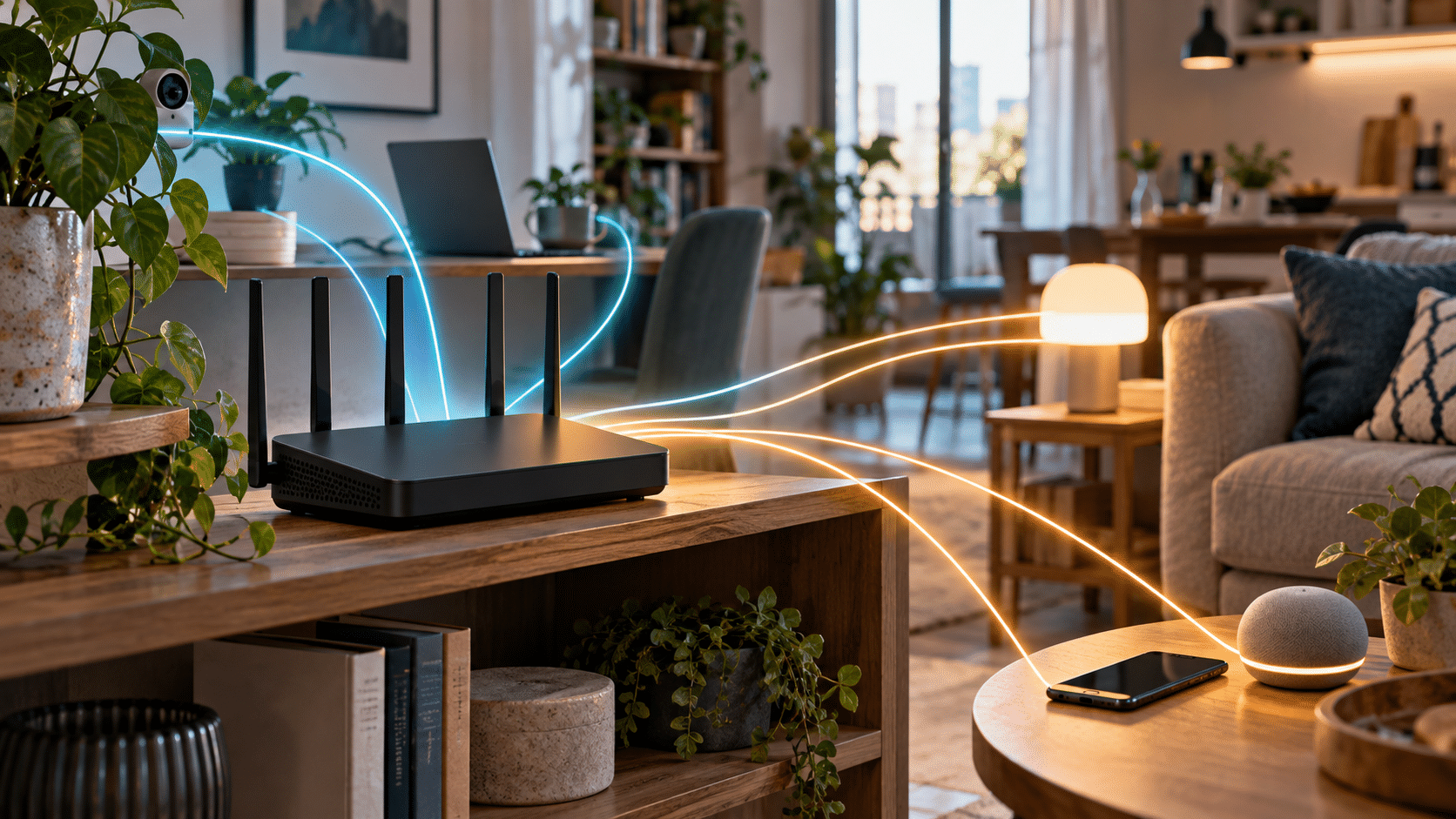
Start here: You can make a home network meaningfully safer in one sitting by updating the router, replacing default administrator credentials, using current Wi-Fi encryption and checking which devices are connected. Keep a record of what you change so that you can undo a setting if it breaks a legitimate device. This is a homeowner’s audit, not a penetration test or a review of a particular router model.
Before you change anything
Find your router’s model and firmware version in its administration app or local settings page. Use the address printed in its manual or supplied by your internet provider; avoid a search-result ad for a lookalike login page. Note whether the box is a combined modem-router from the provider, a separate router, or part of a mesh system. If an employer manages your connection or your provider locks settings, ask the administrator before changing them.
Write down the current network name, guest network state and any special devices such as printers or smart-home hubs. Do not record your passwords in an unprotected note. A password manager can hold them. The FTC’s home Wi-Fi advice recommends changing defaults, updating router software and using strong encryption.
The 20-minute audit
| Check | What to do | If the option is missing |
|---|---|---|
| Firmware | Install the vendor or provider’s available update and enable automatic updates where supported. Recheck after a reboot. | Look up the exact model on the manufacturer’s official support site; an unsupported router may need replacement. |
| Administrator access | Replace the default administrator password with a unique, strong one. Enable admin MFA if offered. | Ask the provider how it protects managed devices. Do not confuse the admin password with the Wi-Fi password. |
| Wi-Fi security | Use WPA3-Personal if all devices support it, or WPA2-AES/CCMP as a compatibility choice. Set a long, unique network password. | If only WEP or WPA is available, plan to replace the router. Legacy modes are inadequate. |
| WPS and remote admin | Turn off WPS PIN and internet-facing remote administration unless there is a specific need and a secure setup. | Verify in the manual whether the feature is enabled by default or controlled by the provider. |
| Guest or IoT access | Use a guest network for visitors and less-trusted devices when the router provides isolation from the main LAN. | A separate network name alone does not prove isolation; check the setting and test access to a local device. |
| Connected devices | Review the client list, label known devices and investigate unknown ones. Change Wi-Fi credentials if unauthorized access is credible. | Check the provider app or device list. Randomized device addresses can make familiar phones look new. |
Security labels differ among vendors. Save a setting, reconnect one trusted laptop or phone, and confirm normal internet access before moving to the next. The CISA home network guidance provides a broader reference for configuration and maintenance.
Test the guest network instead of assuming it isolates devices
- Connect a trusted laptop to the main network and identify its local address in the operating system. Do not publish the address or a router screenshot.
- Connect a phone to the guest network. Check that it can browse the web.
- Try to reach a local service you intentionally permit on the laptop or a test printer. A failed connection is one useful signal, but firewalls and app settings can also block access. Consult the router’s client-isolation setting rather than treating one test as proof.
- If a smart device needs to talk to a controller on the main network, document that exception. Some products need a local path; moving them blindly to guest Wi-Fi may break the setup.
Do not expose an administration page to the public internet to make remote management convenient. If you need access from away, use a vendor-supported secure method and read its current security instructions. CISA’s home-network module also addresses router settings and connected devices.
When a device will not reconnect
| Symptom | First checks |
|---|---|
| An older smart plug disappears after enabling WPA3. | Check vendor support and use a supported WPA2-AES compatibility setting or a properly isolated network. Avoid downgrading the whole network to WEP. |
| A printer works on the main network but not the guest network. | Guest isolation may be working as designed. Keep trusted printers on the main network, or use a documented, limited sharing option. |
| The router’s app no longer finds the router. | Ensure your phone is on the correct network, the management app is current and local access is permitted. Use the vendor’s recovery guide if needed. |
A repeatable monthly check
Once a month, open the official router app or settings page, confirm the firmware status, scan the connected-device list, and remove old guest access when appropriate. After a provider replacement or factory reset, repeat the full audit because defaults can return. The FTC’s connected-device guide covers updates and device-specific settings beyond the router. Menu names and support periods vary by model, so use your vendor’s manual for the final setting. This article does not claim that any pictured hardware was tested.
