
Table of Contents
A QR code is a shortcut to a destination, not proof that the destination is trustworthy. Before you sign in, pay, or download anything, pause at the link preview and check where it leads. This guide gives you a repeatable routine for cafés, parking signs, delivery notices, event tickets, and codes sent by message.
Why a familiar-looking QR code can still be risky
A QR code can contain a web address that opens a counterfeit login or payment page. The code itself does not tell you who placed it there. A sticker can be put over a legitimate printed code, and an unexpected email or text can use a code to hide the destination until you scan. The US Federal Trade Commission (FTC) describes both patterns. Scanning alone is not the same as sharing your password; the main danger is following the link and entering information or installing something on the page it opens.
A 30-second check before opening the page
- Notice the context. Were you expecting this code? Be especially careful with a message that claims a delivery failed, an account needs urgent verification, or a payment is overdue.
- Look at the physical code. On a sign, inspect whether a new sticker covers the original print. A clean sign is not a guarantee, but a pasted-over code is a reason to stop and use another route.
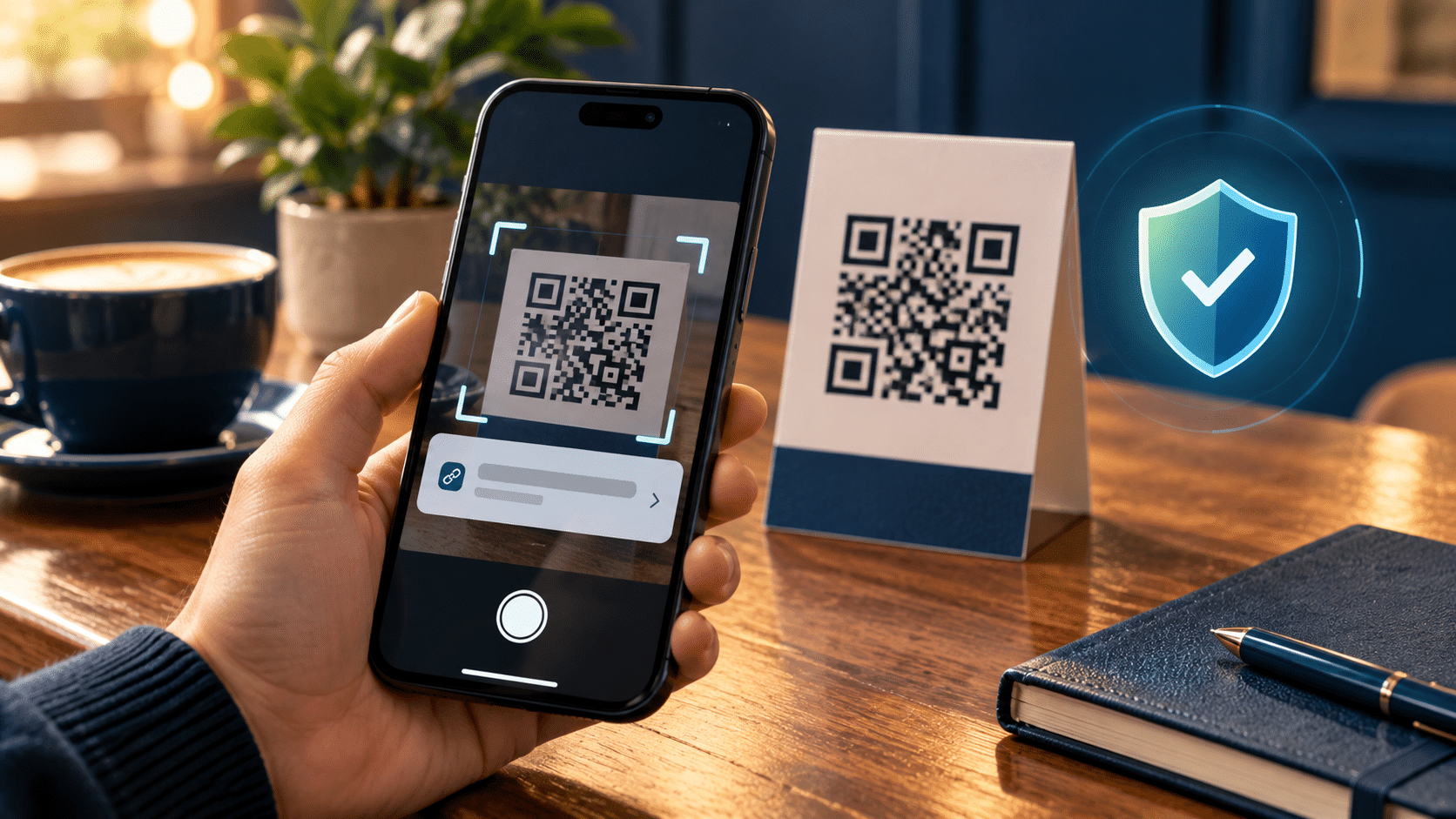
- Use the phone’s built-in camera. Avoid installing an unfamiliar scanner solely to read a code. Let the camera display the destination first, then inspect it before opening.
- Read the actual domain. In
https://accounts.example.com/login, the registered domain isexample.com. Inhttps://example.com.login-check.invalid, it islogin-check.invalid. A brand name in the beginning of a longer address is not proof of ownership. A shortened URL hides the final destination, so use the organization’s own site or app instead when the task involves an account or payment. - Verify independently. Open the official app from your home screen, type the known address yourself, or ask staff for the published payment method. Do not use the suspicious page’s phone number or support link to verify itself.
HTTPS means the connection to that site is encrypted; it does not establish that the site belongs to the company it imitates. Browser warnings can help, but absence of a warning is not a safety verdict. Google describes Safe Browsing as protection against known phishing and malicious sites, rather than a substitute for checking the destination yourself.
Which route should you take?
| Situation | Safer next step | Stop if you see |
|---|---|---|
| Restaurant menu or event information | Preview the address; ask staff for the official site if it looks unfamiliar. | A demand to install an app or enter a password just to view a menu. |
| Parking or other payment sign | Compare the operator’s name and use its official app or a posted machine when available. | A sticker over another code, a mismatched domain, or an unexpected extra fee. |
| Delivery or account notice sent by text/email | Open the service’s app or site independently and check your account there. | Urgency, a login form on an unfamiliar domain, or a request for a one-time code. |
| Code from a person you know | Confirm the purpose through an existing conversation channel if it was unexpected. | The contact suddenly asks for a payment or credential change. |
This table is a practical decision aid, not a test that can certify a code as safe. A legitimate-looking address can still be compromised, and a harmless unfamiliar address may simply be a service provider’s domain.
If you already opened a suspicious QR link
If you only opened the page: close it, do not enter data, and check whether your phone downloaded a file or asked to install an app. Keep the phone and browser updated. You do not need to assume your accounts were taken over merely because a page opened.
If you entered a password: go to the real service using its app or a separately typed address, change that password, and change it anywhere else you reused it. Review recent account activity and turn on multi-factor authentication where available. If you supplied a one-time code, contact the service through its official support channel promptly.
If you entered payment details or sent money: contact your card issuer or payment provider using the number on your card or in its official app. Ask about blocking the card or disputing an unauthorized charge. Preserve the message, URL, and transaction record for the provider. If you installed an unfamiliar app, remove it and use your phone’s built-in security checks; seek device support if you notice unusual permissions or behavior.
Make the safe route easier next time
- Bookmark the sites you use for bills, deliveries, and parking. A QR code should not be your only way to reach an account.
- Use a password manager: it may help reveal a domain mismatch by declining to fill credentials on an unfamiliar site. Still inspect the address yourself.
- Enable available browser phishing protection and updates. Google Safe Browsing explains what such warnings cover.
- Report suspicious messages through the service’s official channel. In the US, the FTC also provides ReportFraud.ftc.gov; elsewhere, use your local consumer or cybercrime reporting channel.
Sources and scope
This guide is based on the FTC’s QR-code scam alert, the FTC’s phishing recovery guidance, and Google’s Safe Browsing overview. It explains general precautions; interfaces and available recovery steps vary by device, service, and country. No QR code or live payment page was tested for this article.
